Why Do My Smart Lights Keep Disconnecting? Diagnostic Quiz
Your smart bulb isn't broken — your router probably is. Most disconnections trace back to band steering, WPA3 conflicts, or a DHCP pool that's quietly run out of headroom.
 Eugen
EugenEugen Nikolajev
Creator of LED Lighting Info
Hi, I am Eugen. I was always one of those kids who had all sorts of weird lighting gadgets for every occasion.
Now, I want to share my knowledge and experience about lighting with you on LED Lighting Info.
Read my editorial standards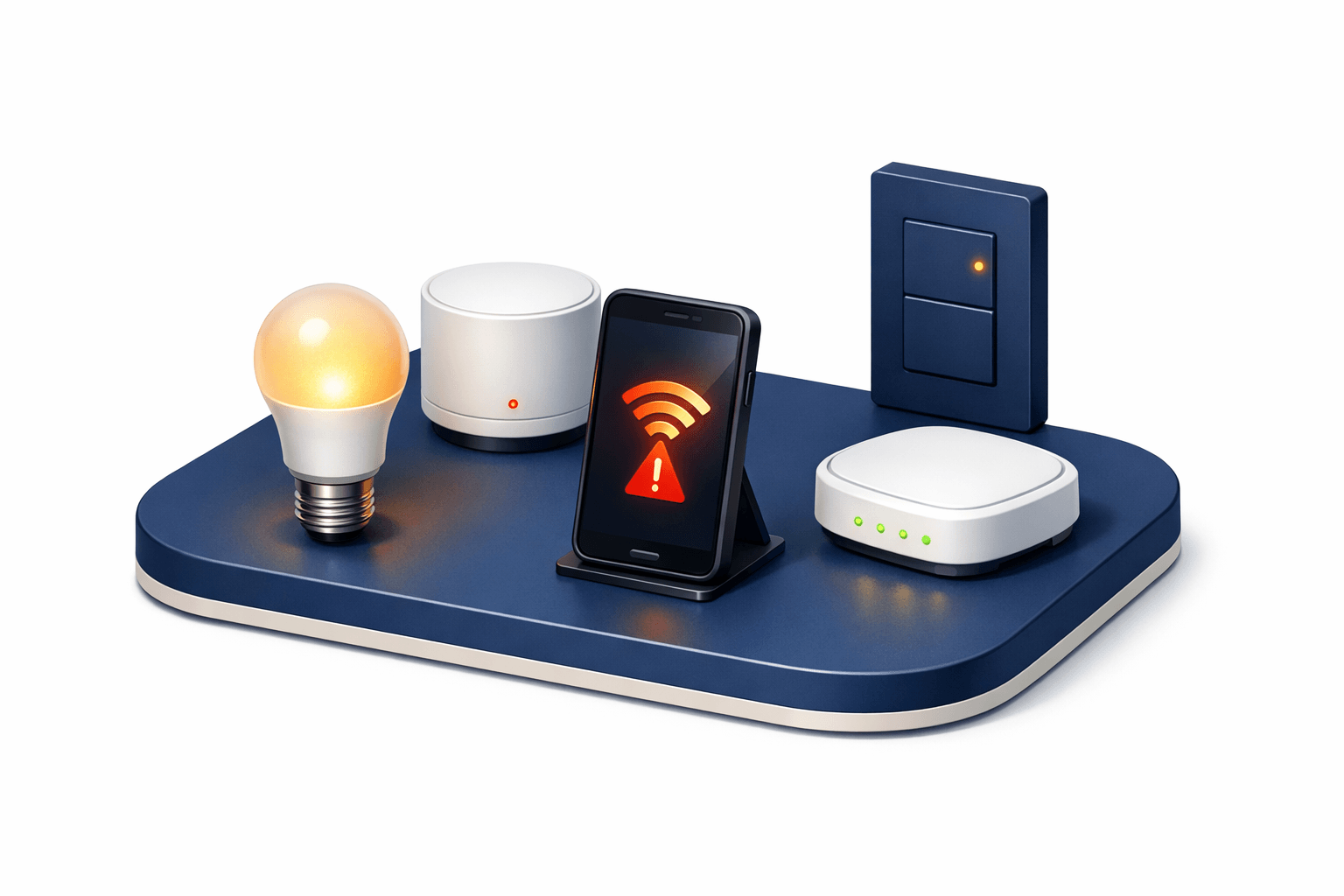
Key Takeaways
Most smart-light disconnections trace back to a handful of causes:
- an overloaded or poorly-tuned router
- a band-steering setup that hides the 2.4GHz network from the bulb
- a WPA3-only security mode that older bulbs can't handle
- a duplicate IP address
- for Zigbee and Thread bulbs — a hub issue.
Smart Light Disconnection Diagnostic
Answer a few questions about your smart light setup and we'll pinpoint the most likely cause of the disconnection — plus the specific fix.
10 questions — takes about a minute
Answers are anonymous and may be used to improve content.
Smart lights should be simple — screw in the bulb, pair it with an app, flip a switch. When they aren't, the problem is almost never the bulb itself.
In this article I'll cover:
- Quick fixes to try before changing any settings
- The most common causes of disconnections, ranked by likelihood
- What changes if your bulbs use Zigbee, Thread, or Matter instead of WiFi
- Targeted fixes for Alexa, Google Home, and Siri issues
Start Here: 30-Second Fixes
Before changing any router settings, try these three fixes. They resolve most intermittent disconnections without needing any diagnosis.
- Power-cycle the bulb: turn the wall switch off for 10 seconds, then back on. This forces the bulb to rejoin the network.
- Restart your router: unplug for 30 seconds, plug back in, and wait about two minutes for it to fully boot.
- Force-close and reopen the smart-light app on your phone. If that doesn't help, reboot the phone.
If the problem keeps coming back, the next escalation is a factory reset of the bulb itself — usually five or six quick on/off cycles at the wall switch. After a reset you'll need to re-pair the bulb in the app. If it still won't hold a connection, the cause is on the network side — read on.
The Main Causes Of Smart-Light Disconnections
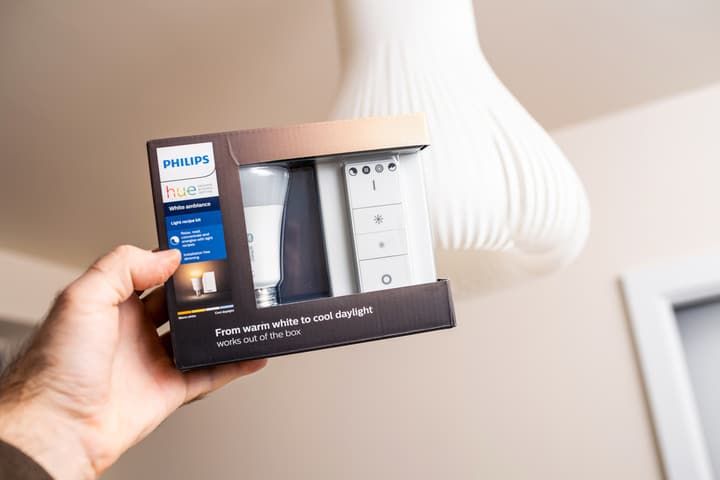
Here's a quick-reference table of the most common causes, ranked roughly by how often they show up. The detailed explanation for each is in the sections below.
| Cause | Typical Symptom | Difficulty to Fix |
|---|---|---|
| Overloaded WiFi | Lights lag or drop during busy hours | Easy |
| Band steering hides 2.4GHz | Bulb can't find the network during setup | Easy |
| WPA3-only security mode | Bulb fails to pair or silently drops off | Easy |
| Weak signal / poor coverage | Bulbs farthest from the router disconnect | Medium |
| RF interference | Flakiness near microwaves or baby monitors | Easy |
| Duplicate IP (DHCP) | Random disconnects after router reboot | Medium |
| Smart speaker offline | Alexa/Google can't control a bulb that works in its own app | Easy |
| App background killed | Disconnects only when the phone has been idle | Easy |
| Zigbee or Thread hub issue | All hub-based bulbs drop together | Easy |
| Outdated firmware | Intermittent flakiness that comes and goes | Easy |
| Defective bulb | One specific bulb misbehaves; the rest are fine | Easy |
Overloaded WiFi
A typical four-person household has two smart TVs, four phones, a few laptops, a game console or two, and increasingly smart appliances like fridges and dryers — easily 15 connected devices before you add a single bulb. Adding WiFi smart bulbs can easily double that count, and cheaper ISP routers struggle with the concurrency. When the router runs out of headroom, requests queue up, bulbs miss keepalives, and they show as offline in the app.
Band Steering And Mixed 2.4GHz / 5GHz
Most WiFi smart bulbs connect on the 2.4GHz band, because 2.4GHz penetrates walls better and the chipsets are cheaper. A few newer models — some Philips Hue, LIFX, and TP-Link Kasa bulbs — support 5GHz or dual-band, and many Matter/Thread and Zigbee bulbs skip WiFi entirely, so check your bulb's spec sheet before assuming 2.4GHz.
The bigger modern issue is band steering. Most mainstream routers sold since 2020 are tri-band or quad-band (WiFi 6E / WiFi 7 add 6GHz on top of 2.4 and 5GHz) and broadcast a single combined SSID. The router silently decides which band to put each device on. Smart bulbs that only see 2.4GHz can fail to find the network during pairing, or get shunted onto a band they don't support and quietly drop off.
Router Security (WPA2 vs WPA3)
WPA3 is the current WiFi security standard, but most smart bulbs use older chipsets that don't support it. If your router is set to WPA3-only, your bulbs may fail to pair during setup or disappear from the network later. A separate, less common issue is aggressive router firewalls or "block idle devices" options that boot rarely-used bulbs off the WiFi and then reject them when they try to rejoin.
Weak Signal Or Poor Coverage
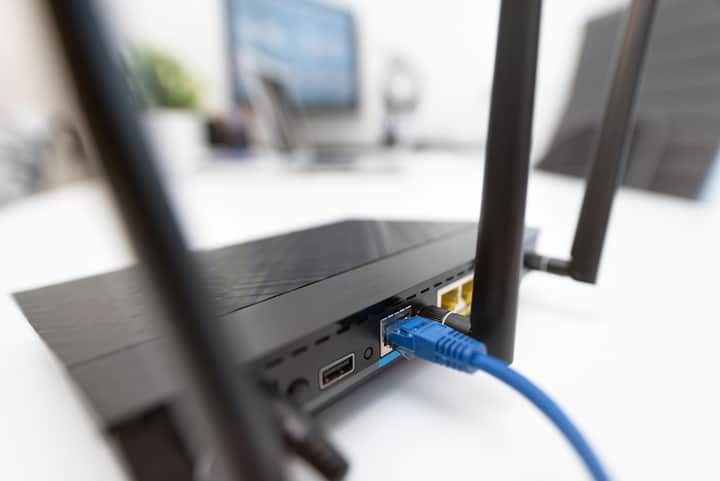
If a bulb sits far from the router with several walls in between, the signal may just be too weak for a stable connection. ISP-supplied routers are often the weakest link: they're designed to hit a price point, not to cover a three-story home. The giveaway is that only your most distant bulbs drop, while bulbs in the same room as the router are fine.
RF Interference
The 2.4GHz band is crowded. Microwaves, baby monitors, cordless phones, older Bluetooth devices, and your neighbor's WiFi can all step on your bulbs' signal. If your router sits next to the microwave or a baby monitor, move one of them — a half-meter of separation often fixes it.
Duplicate IP Addresses (DHCP)
Your router assigns an IP address to every device on your network. If it accidentally hands out the same IP twice, traffic gets confused and one of the devices appears to disconnect. This is uncommon but it does happen — especially if you've mixed manual static IPs with DHCP assignments, or if the router's DHCP pool is too small for the number of devices you run.
Smart Speaker Disconnection (Alexa, Google, Siri)
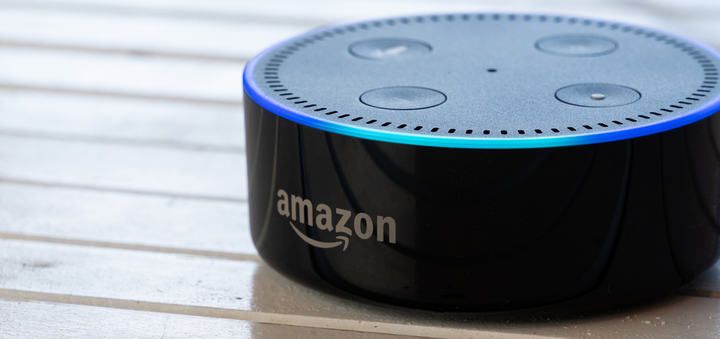
If the bulb itself responds in the manufacturer's app but Alexa or Google Home says it's unreachable, the problem is almost always on the smart-speaker side, not the bulb. Three things to check:
- The smart speaker itself is online (open the Alexa or Google Home app and confirm the device shows as connected).
- The skill or service that links your bulbs to the assistant hasn't been signed out — this happens after password changes or when a manufacturer rotates tokens.
- Your bulb manufacturer's cloud isn't having an outage. Most brands publish a status page.
App And Phone-Side Issues
If disconnections only happen when your phone has been asleep for a while, the culprit is often the phone, not the bulb. Android's battery optimization aggressively freezes background apps, and iOS does something similar with Low Power Mode. The smart-light app loses its connection, and the bulb looks unreachable until you open the app again. Disable battery optimization for the smart-light app, or add it to your phone's unrestricted background activity list.
Outdated Firmware
Firmware updates patch bugs and security flaws, and skipping them can cause bulbs to behave erratically against the manufacturer's current cloud. Keep the app open occasionally and let pending updates install — but plan for time (see the firmware fix below).
Defective Bulb
If only one bulb in a set misbehaves and the rest are fine, you're probably looking at a hardware fault. Swap it with a known-working bulb in the same fitting to confirm, then contact the manufacturer about warranty replacement.
Not Using WiFi? Zigbee, Thread, And Matter
A large share of the smart-lighting market isn't WiFi. Philips Hue, IKEA Tradfri, and many SmartThings-branded bulbs use Zigbee; newer Matter-certified bulbs often use Thread. These protocols have different disconnection causes:
- Hub or bridge offline. Zigbee bulbs talk to a hub (e.g., the Hue Bridge), and the hub talks to your router. If the bridge loses WiFi or power, every bulb on it appears disconnected at once.
- Broken mesh. Zigbee and Thread form mesh networks — each powered bulb extends the signal. Removing or unplugging a central bulb can break the mesh for bulbs further from the hub.
- Hub firmware. The bridge itself needs firmware updates and can get stuck between versions.
Hub-based systems are generally more reliable for larger installations than WiFi-direct bulbs, precisely because they offload traffic from your home WiFi network and use a protocol designed for low-power mesh devices. If you're planning to install more than a handful of smart bulbs, a hub-based system is worth the upfront cost.
How To Fix Smart-Light Disconnections
Fix: Overloaded WiFi Or Weak Signal
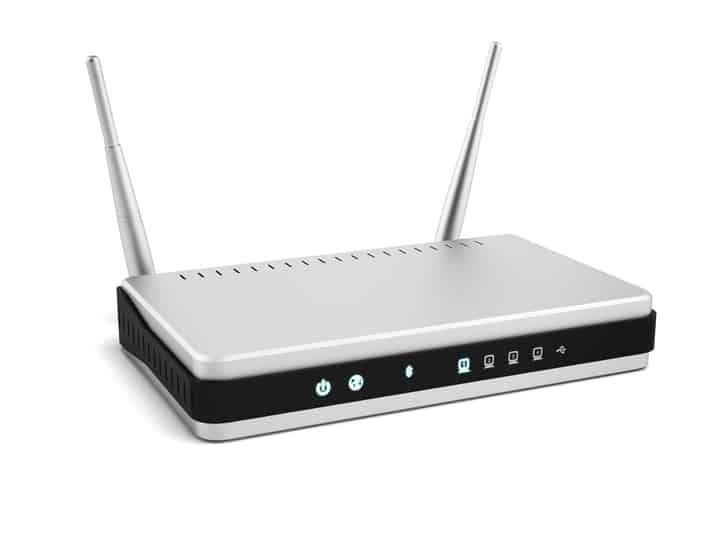
If the root cause is coverage or capacity, you have three options, roughly in order of effectiveness:
- Replace the ISP router. A mid-range router from TP-Link, ASUS, or Netgear will handle more simultaneous devices and has stronger radios than most ISP-supplied units.
- Move to a mesh WiFi system. Mesh kits like Eero, Google Nest WiFi, and TP-Link Deco are the most commonly recommended solution for a multi-room, multi-device home. Several nodes cover the whole house with a single SSID.
- Add a WiFi range extender (carefully). A single-plug extender can boost coverage to one problem corner, but many extenders create a separate SSID — if the bulb was commissioned on the main network, it won't follow the extender unless you re-pair it there. Match the extender's SSID and password to your main network where possible, or pair the bulb via the extender's SSID deliberately.
Fix: Band Steering Hiding The 2.4GHz Network
If your bulb can't find the 2.4GHz network during setup, log into the router admin page and either:
- Temporarily split the 2.4GHz and 5GHz bands into two different SSIDs.
- Disable band steering (sometimes called "Smart Connect" or "Band Unification") until the bulb is paired.
Once the bulb is on the 2.4GHz radio, you can turn band steering back on — the bulb will usually stick to the band it joined.
Fix: Router Security (WPA2 Vs WPA3)
Most smart bulbs use older WiFi chipsets that don't support WPA3. If your router is in WPA3-only mode, switch the 2.4GHz band to WPA2 (AES) or a WPA2/WPA3 mixed/transitional mode and try pairing again. Do not fall back to the original WPA or WEP — both are cryptographically broken and leave your whole network exposed. For guidance, Apple's recommended router settings page is a good baseline.
Also check your router's firewall settings for any "block idle devices" or aggressive intrusion-prevention option that might be booting rarely-used bulbs off the network.
Fix: DHCP Reservation For Duplicate IPs
On your router's admin page, find the DHCP client list, locate your bulb or hub by its MAC address, and set a DHCP reservation so it always receives the same IP. Most smart bulbs don't expose a static-IP setting in their own app — the fix lives on the router. A reservation gets you the benefit of a fixed IP without asking you to configure anything on the bulb itself.
Fix: RF Interference
Move the router away from microwaves, cordless phones, and baby monitors — half a meter of separation is usually enough. If neighbors' WiFi is the problem, log into the router and set the 2.4GHz channel to 1, 6, or 11 (the three non-overlapping channels). Free apps like WiFi Analyzer on Android show which channels are least crowded where you live.
Fix: Firmware Updates
Open the smart-light app, find the firmware or software-update section, and install anything pending. Leave your bulbs powered on until the update finishes — don't cut power mid-update, or you risk bricking a bulb.
Plan for time. Hub or bridge updates typically take 2–5 minutes, but individual bulb updates — especially over Zigbee, which has limited bandwidth — can take anywhere from several minutes to a few hours. Sengled documents full-system updates that take up to 12 hours on Zigbee, and Philips Hue bulb updates commonly take about 20 minutes each. Kick the update off when you don't need the lights.
Fix: Defective Bulb
If one specific bulb is the only one misbehaving, swap it with a known-working bulb in the same fitting. If the fitting now works, the original bulb is defective — contact the manufacturer about warranty replacement. Most brands replace genuinely faulty bulbs within the warranty window at no cost.
FAQ
Can I use a WiFi extender with smart bulbs?
Yes, but carefully. Many extenders create a separate SSID that the bulb wasn't commissioned on, so the bulb won't follow the extender unless you re-pair it there. Where possible, configure the extender with the same SSID and password as your main router so the bulb roams naturally. A mesh WiFi system (Eero, Google Nest WiFi, TP-Link Deco) is usually a cleaner solution because it uses a single SSID across all nodes.
Are Philips Hue and other Zigbee bulbs more reliable than WiFi bulbs?
For larger setups, yes. Zigbee bulbs talk to a bridge, and only the bridge uses your WiFi — so adding 20 bulbs adds one WiFi device instead of twenty. Zigbee also forms a self-healing mesh where each powered bulb extends range. The trade-off is the upfront cost of the bridge and the need to buy bulbs from a compatible ecosystem.
Is it safe to leave my WiFi on WPA2 instead of WPA3?
Yes. WPA2 (AES) is still considered secure with a strong password and is what most smart home devices require. The real risk is dropping below WPA2 — WPA (original) and WEP are broken and should never be used. A WPA2/WPA3 mixed-mode setting is the best of both worlds: modern devices use WPA3, and older smart bulbs fall back to WPA2.
Why won't my smart bulb connect to my new router?
Most often it's band steering — the new router broadcasts one SSID across 2.4GHz and 5GHz, and the bulb can only see 2.4GHz. Either split the SSIDs temporarily or disable band steering in the router settings during pairing. WPA3-only mode is the second most common culprit; switch to WPA2 or a WPA2/WPA3 mixed mode for the 2.4GHz band.
How long should a smart bulb firmware update take?
Longer than you'd expect. Hub or bridge firmware updates are usually 2–5 minutes, but individual bulb updates can range from several minutes to a few hours, especially on Zigbee. Don't cut power mid-update — that's the one reliable way to brick a smart bulb.
Final Thoughts
Nearly every smart-light disconnection comes down to one of the causes in the table above, and most are fixed from the router admin page in five minutes. Start with the 30-second fixes, then work down the list.
If you've tried everything here and a specific bulb still won't hold a connection, contact the manufacturer — most smart-lighting brands offer live chat or email support, and they'll usually replace faulty hardware under warranty. If you're planning a larger install, consider a hub-based ecosystem like Philips Hue from the start: the bridge takes the load off your WiFi and makes the whole system meaningfully more reliable.