
Why Do LED Lights Flicker On Camera? + How To Fix It
That LED goes dark 120 times every second — your eye never notices, but your camera does, catching the bulb mid-pulse whenever the frame rate and grid frequency fall out of sync.
 Eugen
EugenEugen Nikolajev
Creator of LED Lighting Info
Hi, I am Eugen. I was always one of those kids who had all sorts of weird lighting gadgets for every occasion.
Now, I want to share my knowledge and experience about lighting with you on LED Lighting Info.
Read my editorial standards
Key Takeaways
LED lights flickering on video happens because the LEDs are actually flickering in real life — it's just so fast that we can't see it. The effect becomes visible on camera when the recording's frames per second don't line up with the frequency of the electricity powering the light. This is called the 'strobe effect.'
LED lights flicker on camera because of a mismatch between your camera's frame rate and the frequency of your AC power supply. Here's why it happens, and how to fix it.
Below, we'll cover:
- Why LED lights flicker on video
- What makes the flicker worse in slow motion
- How to stop the flicker, in priority order
Why Do LEDs Flicker On Camera?
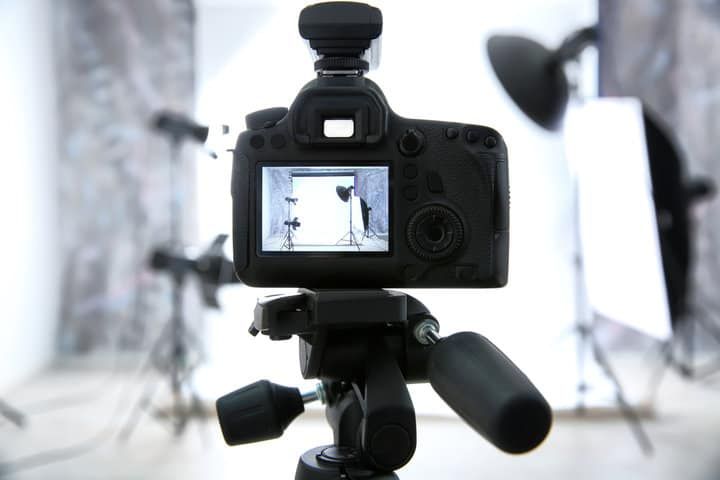
LED bulbs pulse on and off many times per second, but our eyes blend the pulses into a steady glow. Video cameras sample the world at a fixed frame rate, and when their shutter happens to open during a 'dark' moment, the resulting frame captures the bulb mid-pulse — which we then see as flicker on playback.
Affected LEDs are powered by alternating current (AC), where the voltage and current reverse direction many times per second. Each full reversal is one cycle, and the number of cycles per second is measured in Hertz (Hz).
In the US and most of the Americas, electricity runs at 60 Hz. Most of Europe, Africa, Asia, and Australia use 50 Hz. A few places use both — eastern Japan (Tokyo, Tohoku, Hokkaido) is 50 Hz, while western Japan (Osaka, Kyoto, Kyushu) is 60 Hz.
In each AC cycle, the voltage rises and falls in a sine wave, crossing zero twice per cycle. Because LEDs respond almost instantly to current — unlike incandescent filaments, which stay hot through the dip — the bulb dims or extinguishes at every zero crossing. That means the light pulses 120 times per second on a 60 Hz US grid, or 100 times per second on a 50 Hz grid.
While the naked eye blurs that flicker into a steady glow, a camera recording at a different rate will capture some frames mid-pulse — and that's where the on-screen flicker comes from.
Why Do LED Lights Flicker In Slow Motion?
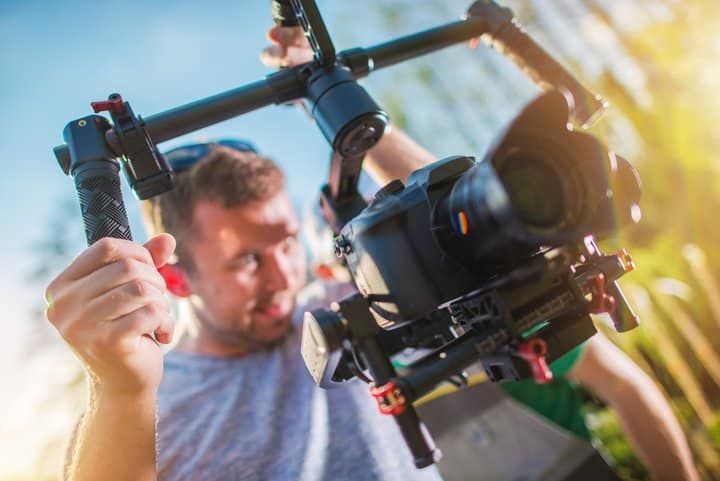
Slow-motion footage exaggerates LED flicker because the camera is sampling the bulb far more often than your eye does. Each 'off' moment that gets captured is then stretched across many frames of playback, turning a flicker you'd never notice into an obvious strobe.
Here's the key principle: the closer your camera's frame rate is to a multiple of the LED's flicker frequency (120 Hz in the US, 100 Hz in 50 Hz countries), the less flicker you'll see. The further away it is, the worse the strobe effect.
Some numbers to make this concrete. A US-grid LED pulses 120 times a second. The human eye doesn't have a fixed frame rate, but most people stop noticing flicker once it climbs above roughly 60–90 Hz under normal conditions — which is why 100–120 Hz looks steady to most of us, even though sensitive viewers can perceive flicker artifacts well above that.
Cameras are a different story. Specialized scientific high-speed cameras like the Phantom series can capture over a million frames per second at reduced resolution, but those are research instruments, not consumer gear. Many flagship Android phones can capture short bursts at 960 FPS or higher in their super slow-motion mode (typically at 720p). iPhones top out lower — around 240 FPS in their built-in slo-mo — but third-party apps can push further.
The math: one second of 960 FPS played back at 60 FPS becomes 16 seconds of footage. That means every sixteenth of a second of real time is stretched out for you to see — including all the brief 'off' moments of the LED.
Older incandescent bulbs didn't have this problem. The tungsten filament's thermal inertia kept it glowing through the AC zero crossings, smoothing the light output. LEDs respond in microseconds, so they have no such buffer.
How To Stop LED Lights From Flickering On Camera
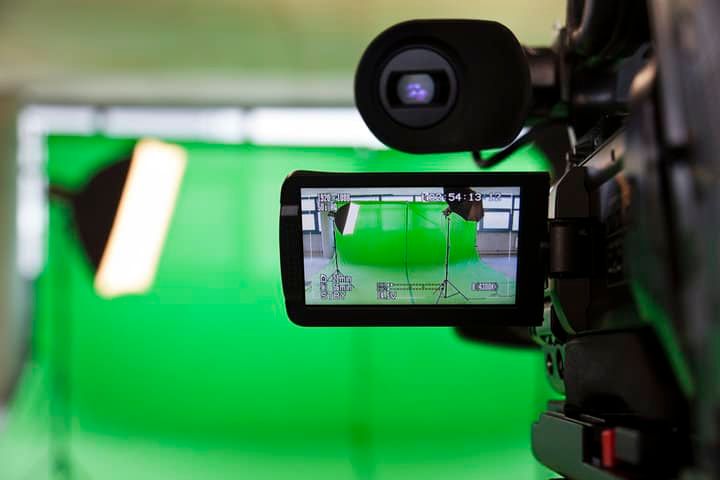
Try these in order — the earliest steps cost nothing and fix most cases, while the later ones involve buying new hardware.
- Enable your camera's anti-flicker setting
- Match your frame rate and shutter speed to the grid frequency
- Adjust the brightness of the lights
- Swap the bulb or dimmer for a flicker-free model
- Use natural light or move the bulbs out of frame
1. Enable Your Camera's Anti-Flicker Setting
Most modern cameras include a flicker-reduction option that automatically syncs the shutter to your local mains frequency. It's the fastest fix and usually costs you nothing in image quality.
Where to look:
- DSLR/mirrorless cameras (Canon, Sony, Nikon, Fujifilm): look for Anti-Flicker Shoot or Flicker Reduction in the shooting menu, with options for 50 Hz or 60 Hz.
- iPhone (native Camera app): there's no manual anti-flicker toggle, but switching between PAL (50 Hz / 25 fps) and NTSC (60 Hz / 30 fps) presets in third-party apps like Filmic Pro, Blackmagic Camera, or Halide gives you direct control.
- Android (Samsung, Pixel, Xiaomi): check the Camera app settings for Anti-flicker or Anti-banding — usually under the gear icon, with 50 Hz / 60 Hz / Auto choices.
2. Match Your Frame Rate and Shutter Speed to the Grid
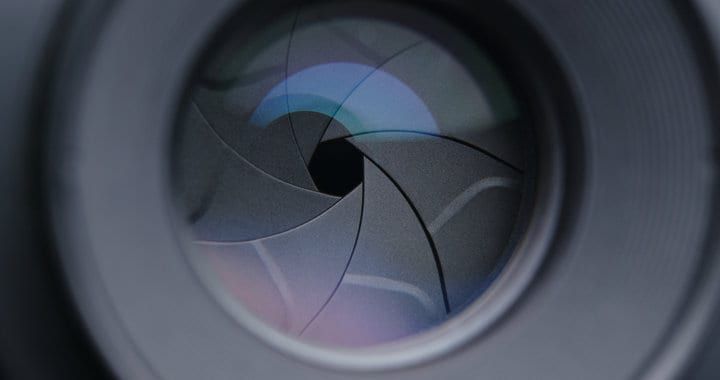
If anti-flicker isn't enough, set the shutter speed to a whole multiple of the LED's pulse period — that way each frame captures a complete number of light pulses, and they all look equally bright. On a 60 Hz US circuit the pulse period is 1/120 s, so safe shutter speeds are 1/120, 1/60, 1/40, or 1/30. On a 50 Hz circuit the pulse period is 1/100 s, giving 1/100, 1/50, 1/200, and so on.
Here's a quick reference for common shooting frame rates:
Filmmakers often pair this with the 180-degree shutter rule — set your shutter speed to roughly double your frame rate (e.g. 1/60 at 30 fps) to get natural-looking motion blur. At 30 fps on a 60 Hz grid, the 180° rule and the anti-flicker rule both land on 1/60, which is convenient. At 24 fps the 180° shutter (1/48) doesn't sync with mains, which is why filmmakers in the US typically push to 1/60 (and 1/50 in 50 Hz countries) and accept slightly less motion blur.
3. Adjust the Brightness
Brighter LEDs tend to look steadier on camera because the 'off' dips are shorter relative to the overall light output. If your bulb is on a dimmer, try running it at full power; if you have multiple LEDs in the scene, adding more can also wash out the visible flicker.
4. Swap the Bulb, Driver, or Dimmer
Flicker tends to follow cheap drivers and the wrong dimmer combination. A few things to know before you buy a replacement.
What an LED driver is. Every LED needs a small electronic circuit that converts the AC mains supply into the steady, low-voltage DC current the diodes actually want. That circuit is the driver. Most quality screw-in bulbs and LED strip kits include one inside the housing or as a separate brick. Look for terms like constant-current driver, DC driver, or flicker-free on the packaging. LEDs powered by a high-quality DC driver — one that smooths the rectified mains into steady DC — produce far less visible flicker. Cheap drivers with poor smoothing can still ripple at 100–120 Hz, so 'DC-powered' alone isn't a guarantee.
Flicker-free / high-frequency LEDs. A growing class of bulbs and LED strips is marketed specifically as 'flicker-free' — typically meaning the driver runs at 20,000 Hz or higher, well above any consumer camera's sample rate. These are the most permanent hardware fix and they look identical to standard LEDs to the naked eye. Look for the term on the packaging or in the spec sheet, often alongside a flicker percentage figure (under 1% is excellent).
PWM dimmers. If your LED is on a DC supply but still flickers, it may be on a pulse-width-modulation dimmer. PWM dims the light by rapidly switching it on and off — the longer the 'off' time per cycle, the dimmer it appears. Whether this shows up on camera depends entirely on the PWM frequency: cheap dimmers run at 100–500 Hz (very visible to cameras), while higher-end ones run at 5,000–25,000 Hz (invisible to almost any camera). If yours flickers on video, check the spec sheet for the PWM frequency and replace it with a higher-frequency model.
Wall dimmers. If your bulb is wired to an old leading-edge (TRIAC) dimmer, swap it for a trailing-edge dimmer rated for LEDs, or use a flicker-free LED driver with a compatible dimmer. Generic 'analog' or leading-edge dimmers were designed for incandescent bulbs and often cause flicker (and buzzing) with LEDs rather than fix it — the LED's driver doesn't pull enough current to keep the TRIAC latched, and the abrupt voltage step at the leading edge confuses the driver. Always check the dimmer's LED-compatibility rating against your bulb's spec sheet.
5. Use Natural Light or Hide the Bulbs
Daylight doesn't flicker. If you can shoot near a window or outside, you sidestep the problem entirely — though the available light may not be intense enough for every shot.
If you must use LEDs, position them outside the frame so they illuminate the scene without appearing on camera. The strobe effect is most obvious on the bulb itself; the diffuse ambient light it casts on walls and faces almost never shows visible flicker.
Final Words
There are two paths out of LED flicker on video. The software path is free: turn on your camera's anti-flicker setting, and match your frame rate and shutter speed to the local grid (30 fps with 1/60 in the US, 25 fps with 1/50 in 50 Hz countries). The hardware path is more permanent: replace the bulb with a flicker-free, high-frequency-driver LED, and pair any dimmer with one specifically rated for LEDs (trailing-edge, not leading-edge).
If you can see the flickering with your own eyes — not just on camera — that's a different problem. Read our guide on LED lights flickering for the diagnostic walkthrough.
| Grid Frequency | Recommended FPS | Safe Shutter Speeds |
|---|---|---|
| 60 Hz (US, Canada, much of the Americas) | 30 FPS | 1/60, 1/120, 1/240 |
| 60 Hz — cinematic | 24 FPS | 1/60 (compromise) or 1/120 |
| 50 Hz (Europe, most of Asia, Africa, Australia) | 25 FPS | 1/50, 1/100, 1/200 |
| 50 Hz — cinematic | 24 FPS | 1/50 or 1/100 |